Use this workflow from the Submit Recording page after recording audio, uploading a file, or entering a transcript.
Before Submitting
Confirm:
A recording, uploaded file, or transcript is present.
The correct Recording Type is selected (if uploading audio):
Dictation → Single speaker
Conversation → Two speakers
Generate a Note (Step-by-Step)
Select the Client.
Choose how Clara should generate the output:
Use Transcript Only
Apply a Clara Template
(Optional) Enable Link to Visit and select the associated appointment.
(Optional) Select up to 2 Previous Notes for Context.
Click Generate Note.
Clara will begin processing immediately.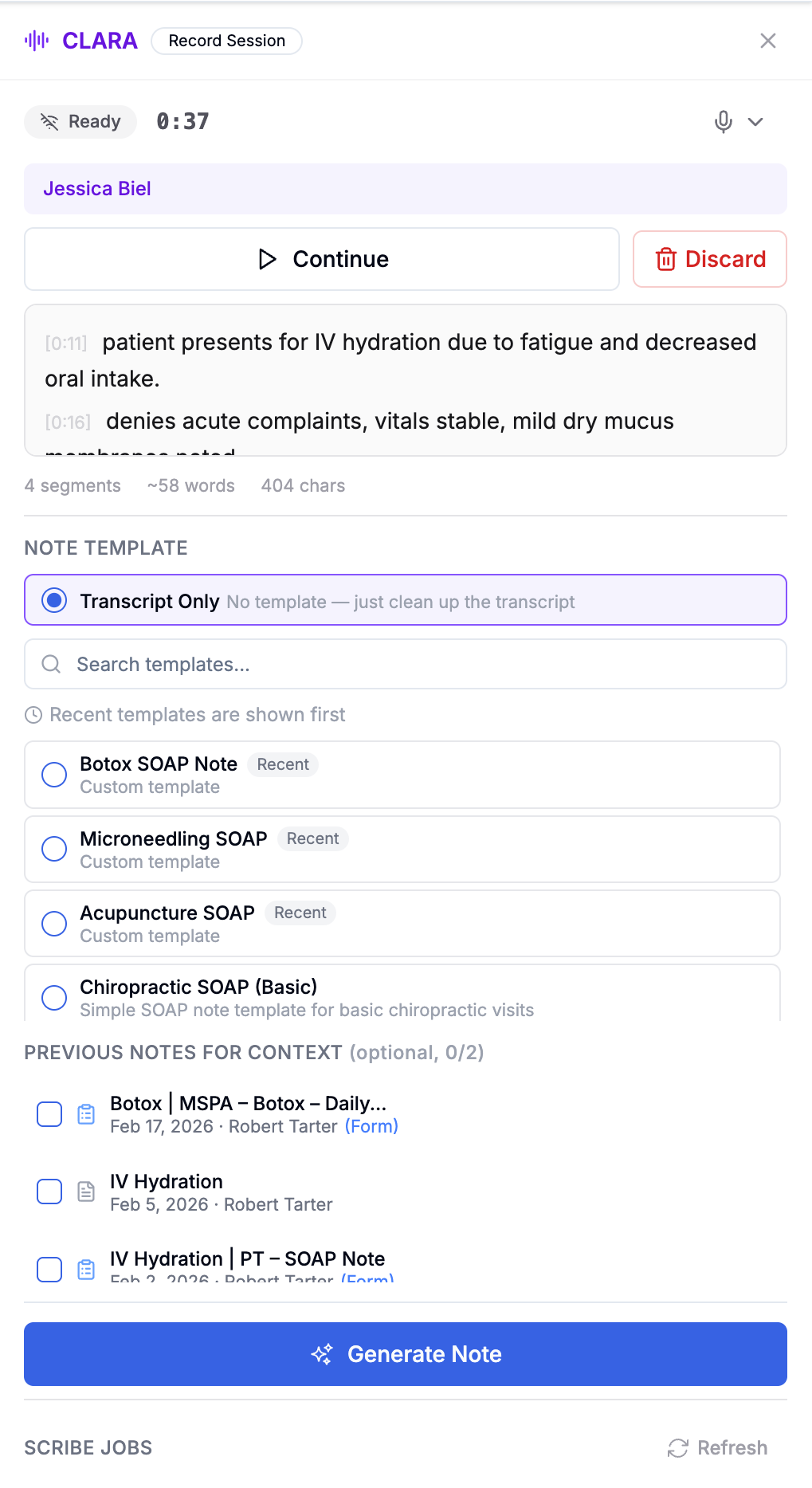
Applying a Recording to a Form Note
There is no note-type selector on the Submit Recording page.
If you want Clara to generate content for a Form Note, you must:
Record directly inside the Form Note, or
Select the target Form Note after recording (when prompted)
Clara applies output to the note that is actively targeted.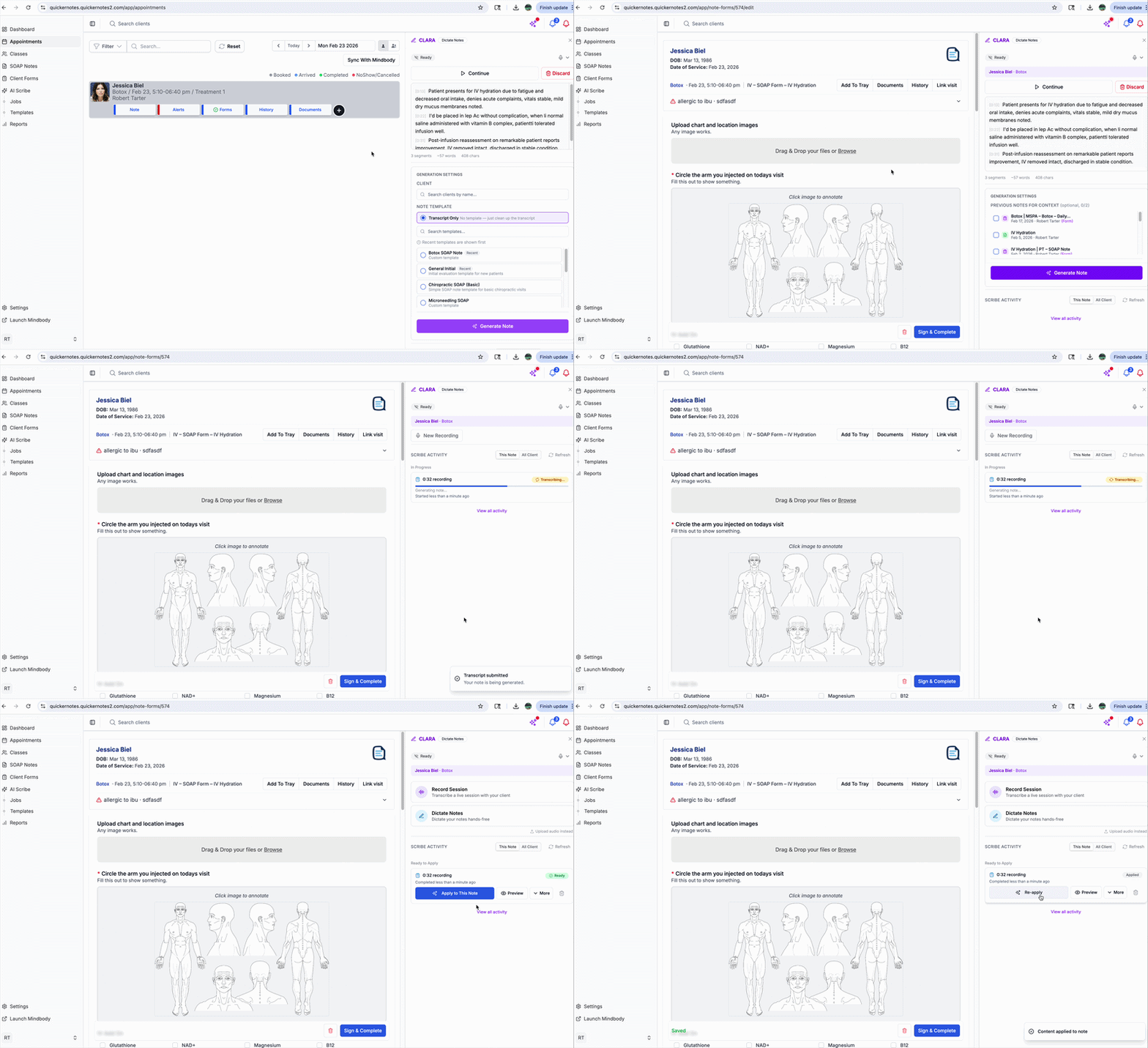
What Happens After You Click Generate
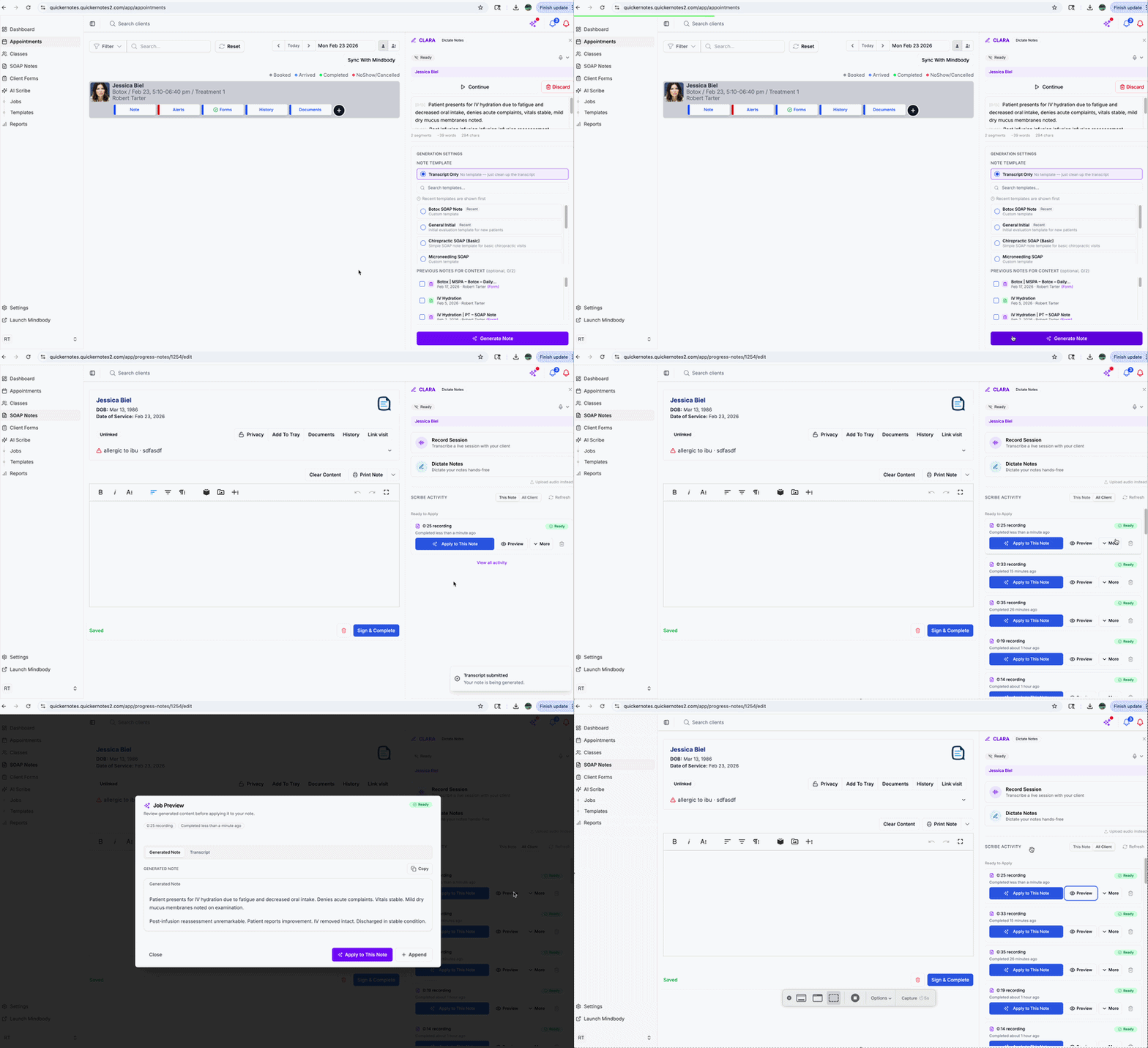
Clara creates or targets a draft note.
An AI job is started.
You may be redirected to the target note (if applicable).
Job progress appears in:
AI Scribe → Jobs
The streaming panel (when enabled)
You can also view and apply other Clara jobs for the same client, not just the one you just submitted.
Within the note view, you can toggle between:
This Note Only (jobs tied to the current note)
All Client Jobs (all recordings for that client)
This allows you to review or apply output from prior recordings if needed.
All generated content must be reviewed before finalizing.
Important Limits
Only one active AI Scribe job per staff user at a time.
Transcript submissions must contain meaningful content. Very short or empty transcripts will be rejected.
Clara generates draft content only — it does not finalize or sign notes automatically.
Was this article helpful?
That’s Great!
Thank you for your feedback
Sorry! We couldn't be helpful
Thank you for your feedback
Feedback sent
We appreciate your effort and will try to fix the article