Clara AI is the AI Scribe workflow in QuickerNotes. It allows you to record or upload audio, generate draft documentation, and apply that content directly to progress notes or form notes.
Before You Begin
Confirm the following:
If microphone access is blocked, recording will not start.
Where to Access Clara
You can open Clara from two locations:
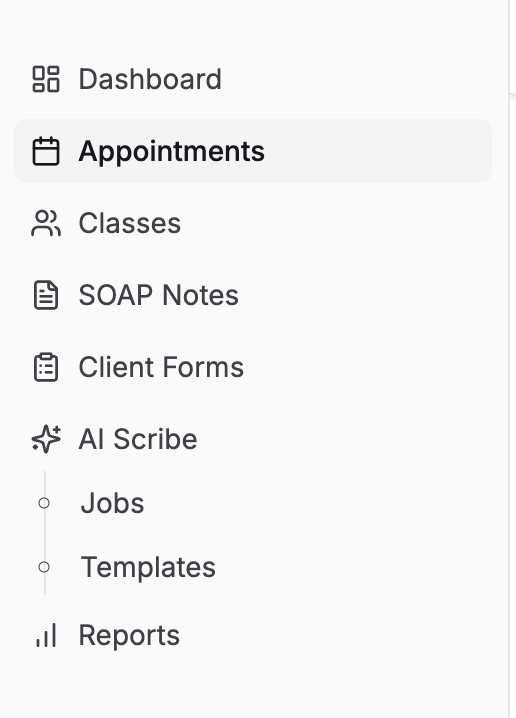
Sidebar
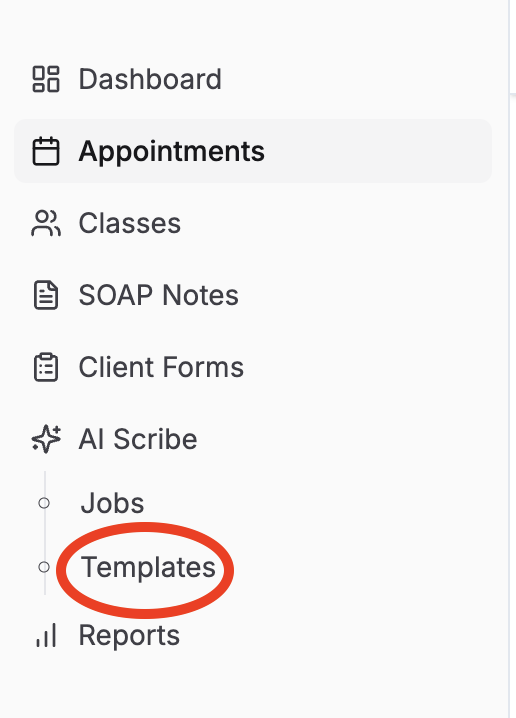
Go to AI Scribe → Jobs or AI Scribe → Templates
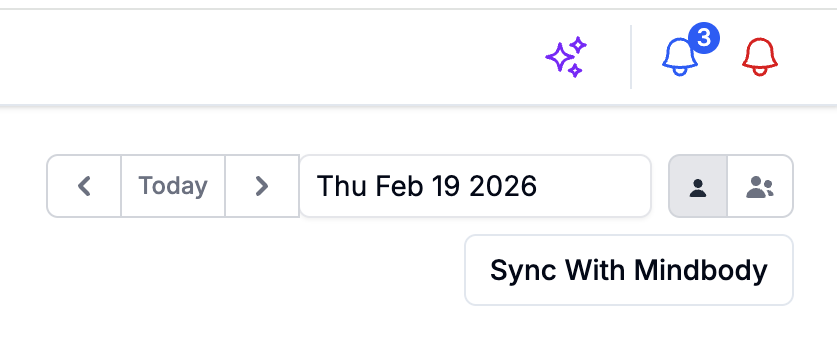
Header Button
Click the sparkle icon in the header to open the Clara recorder popover.
Recording & Input Options
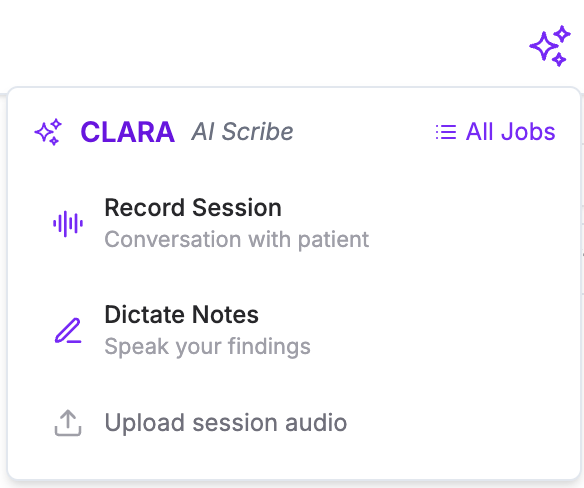
From the Clara menu, you can choose:
Record Session
Multi-speaker conversation format (ideal for provider + client sessions)
Dictate Notes
Single-speaker dictation format
Upload Session Audio
Upload a previously recorded audio file for processing
Submit a Recording
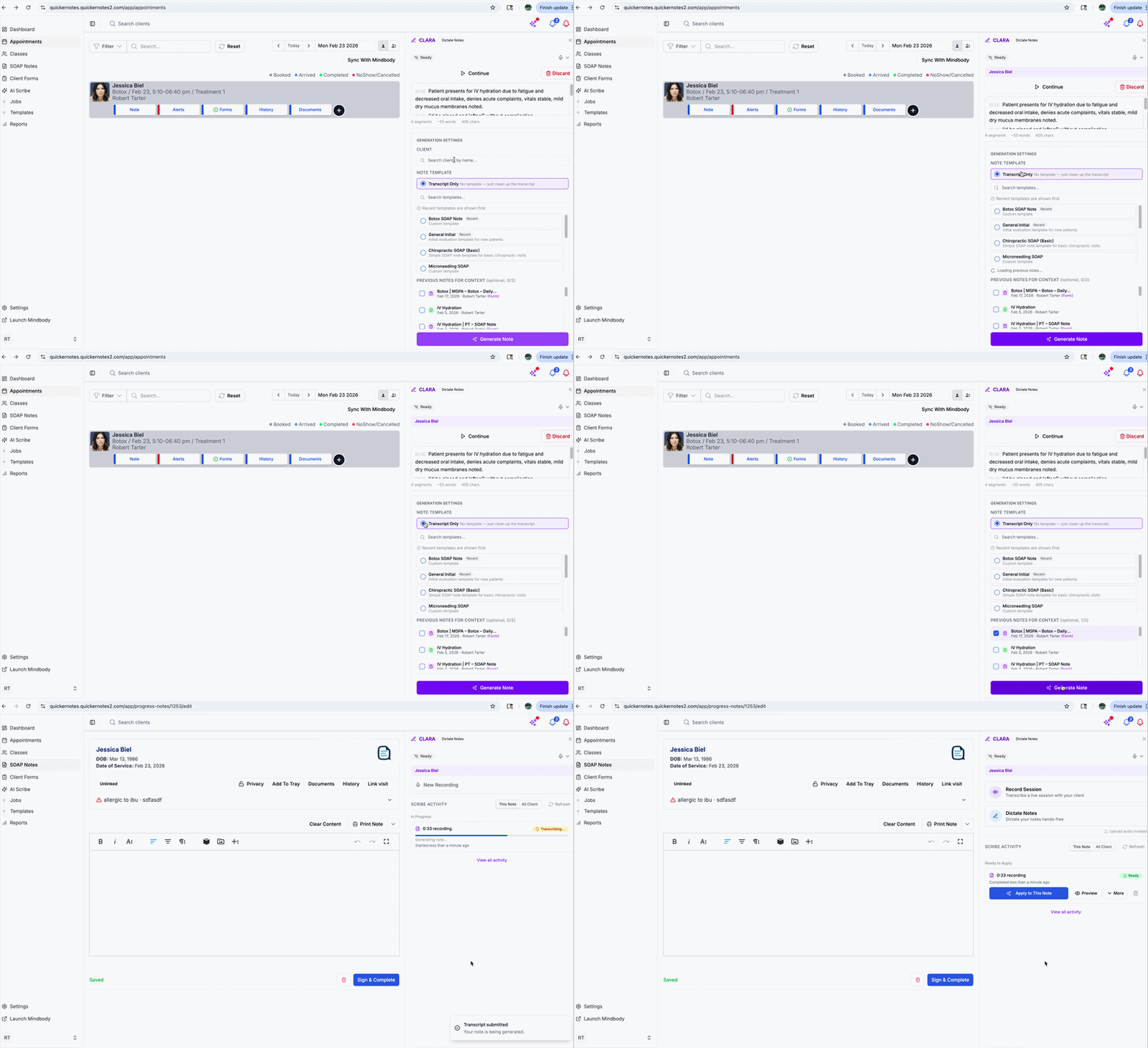
After recording or uploading audio:
Select the client
Choose the note target (progress note or form note)
Select a Clara Template (optional, if applicable)
Click Submit
The recording will be processed and added to your job list.
Track Job Status
Go to AI Scribe → Jobs to:
Apply output to the selected note
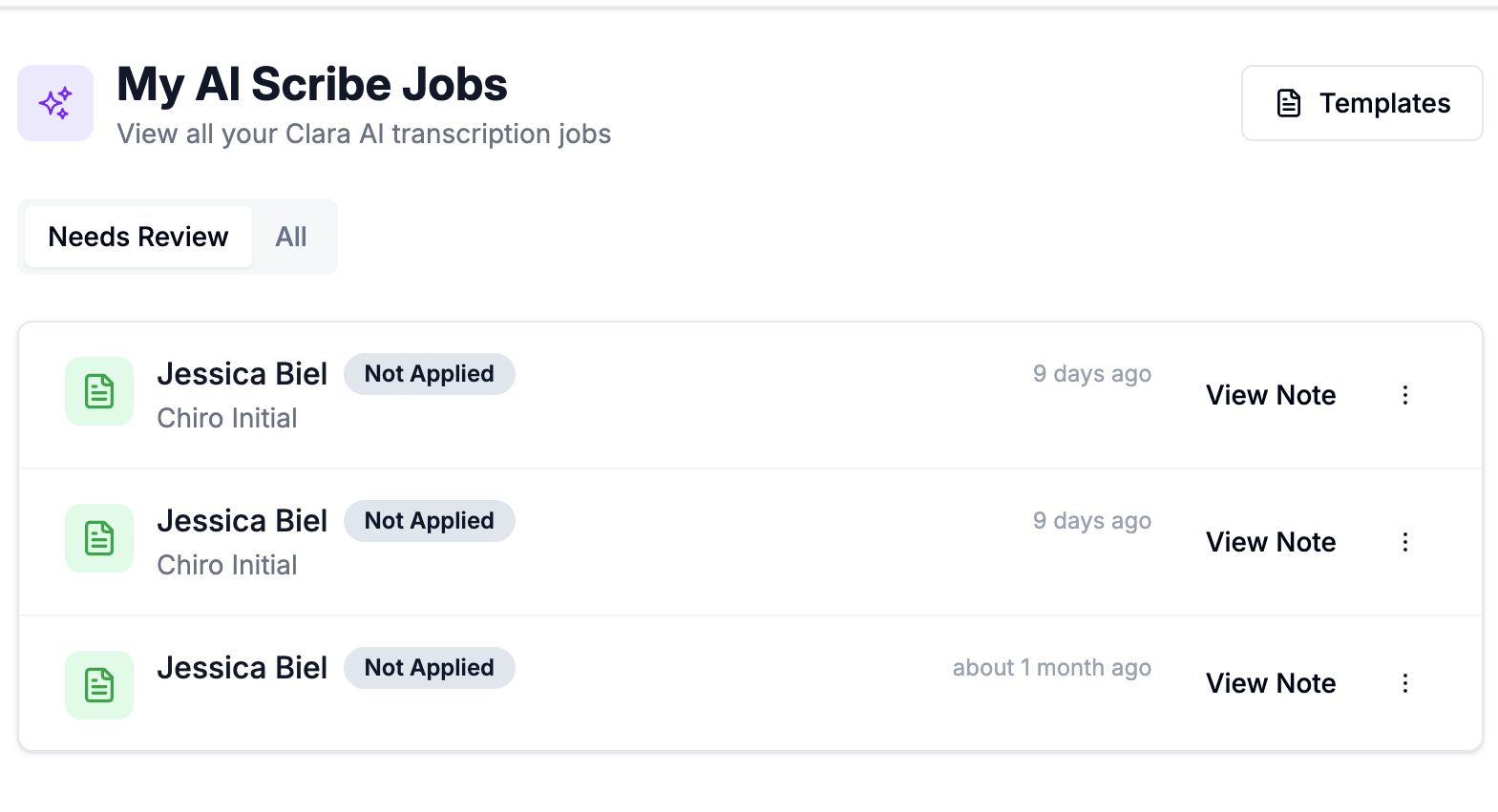
View All Jobs for a Client
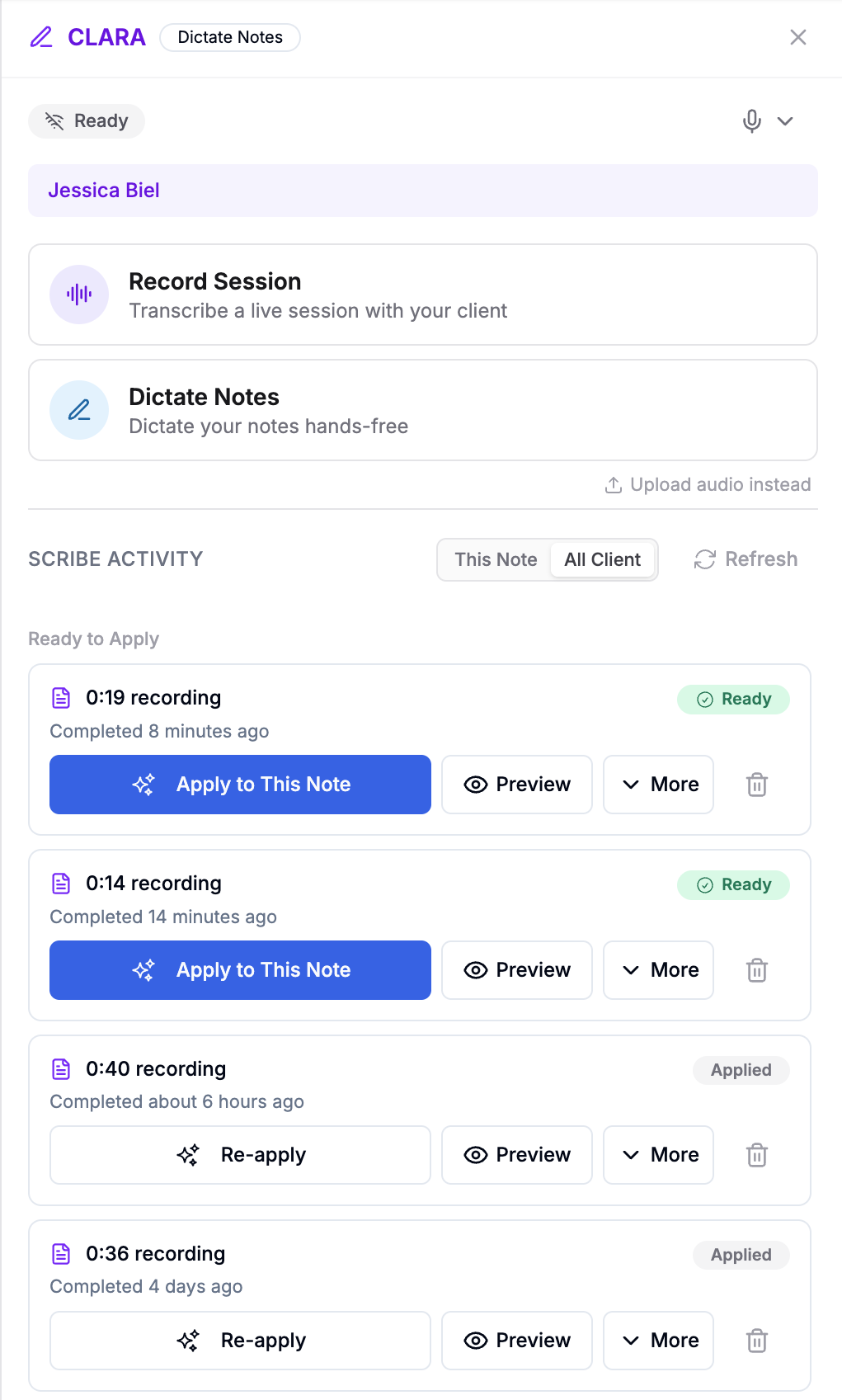
When submitting a recording for a client, you can now view all Clara jobs associated with that client — not just the current recording.
This allows you to:
You can toggle between:
This makes it easier to reference past sessions during documentation.
Manage Clara Templates
Go to AI Scribe → Templates to:
Templates can be reused across multiple recordings.
What Clara Does Not Do Automatically
It does not finalize or sign notes.
It does not bypass provider review.
It does not allow non-owners to edit another user’s private template.
All generated content must be reviewed before finalizing documentation.
Privacy & HIPAA
For full details on data handling and compliance, see:
Privacy, HIPAA, and AI Training Data Policy
This policy outlines:
No customer data is used for AI model training
HIPAA-aligned data handling practices
Transcript and audio access controls
Data retention and deletion policies