Clara AI is QuickerNotes AI Scribe that can record sessions, generate transcripts, and draft clinical notes from audio.
Before Clara can be used, it must be activated in Settings. Activation includes accepting the AI policy, purchasing credits, and enabling staff and locations to use Clara.
To activate Clara and purchase credits, the following permission must be enabled:
subscriptions:create
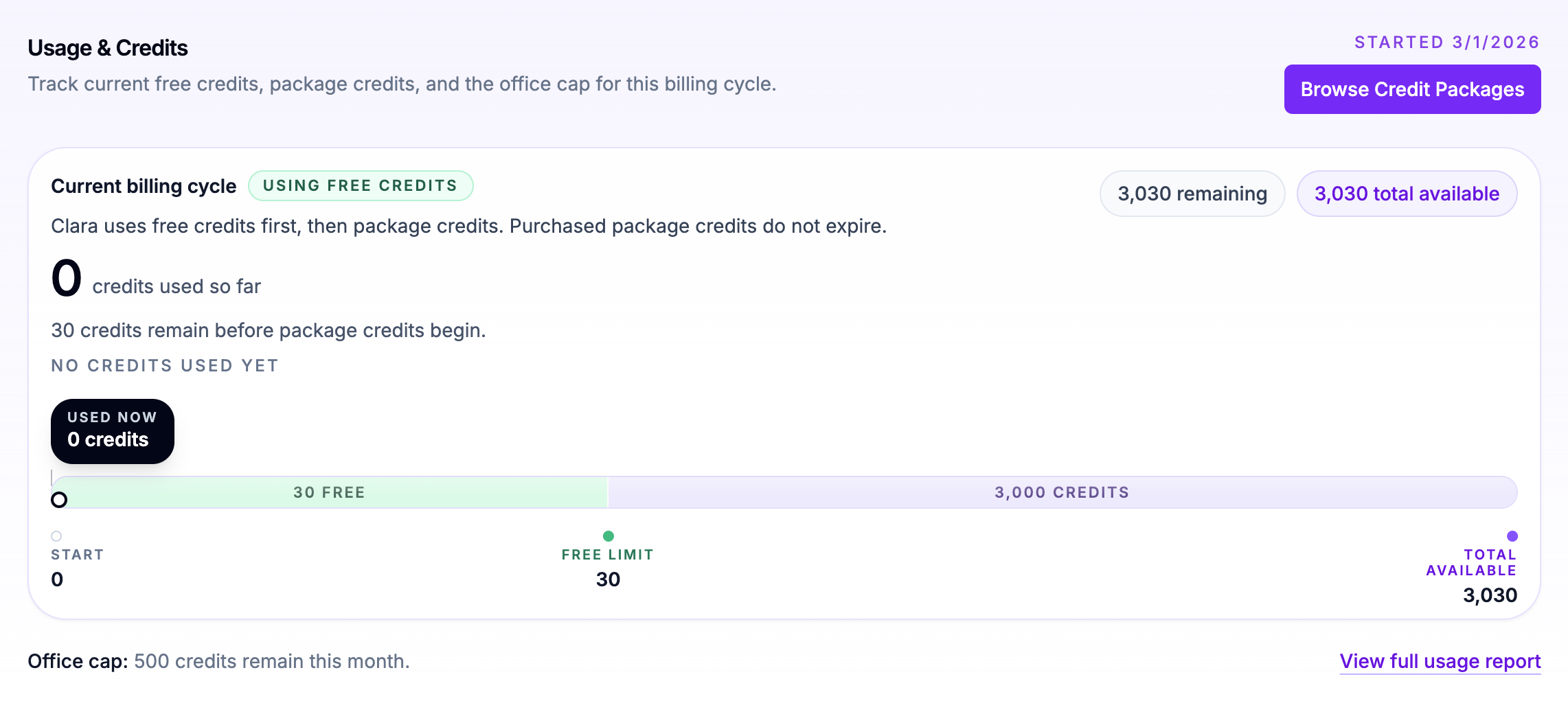
Each office automatically receives 30 free Clara credits per month.
1 credit = 1 minute of recording
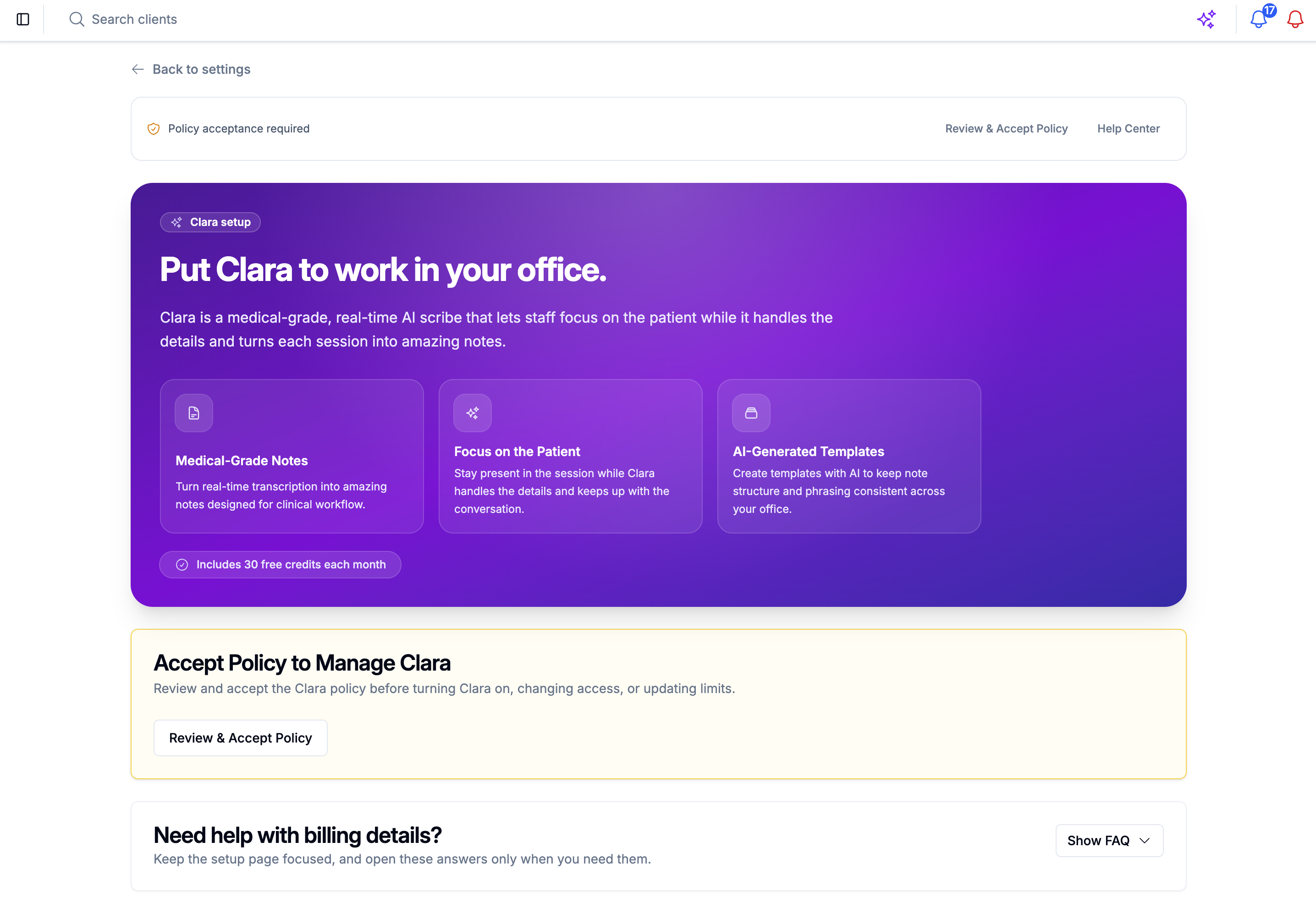
Step 1: Review and Accept the Clara AI Policy
Go to Settings → Clara AI.
Review the Clara AI Policy.
Click Accept to enable Clara features for your account.
Clara cannot be used until the policy has been accepted.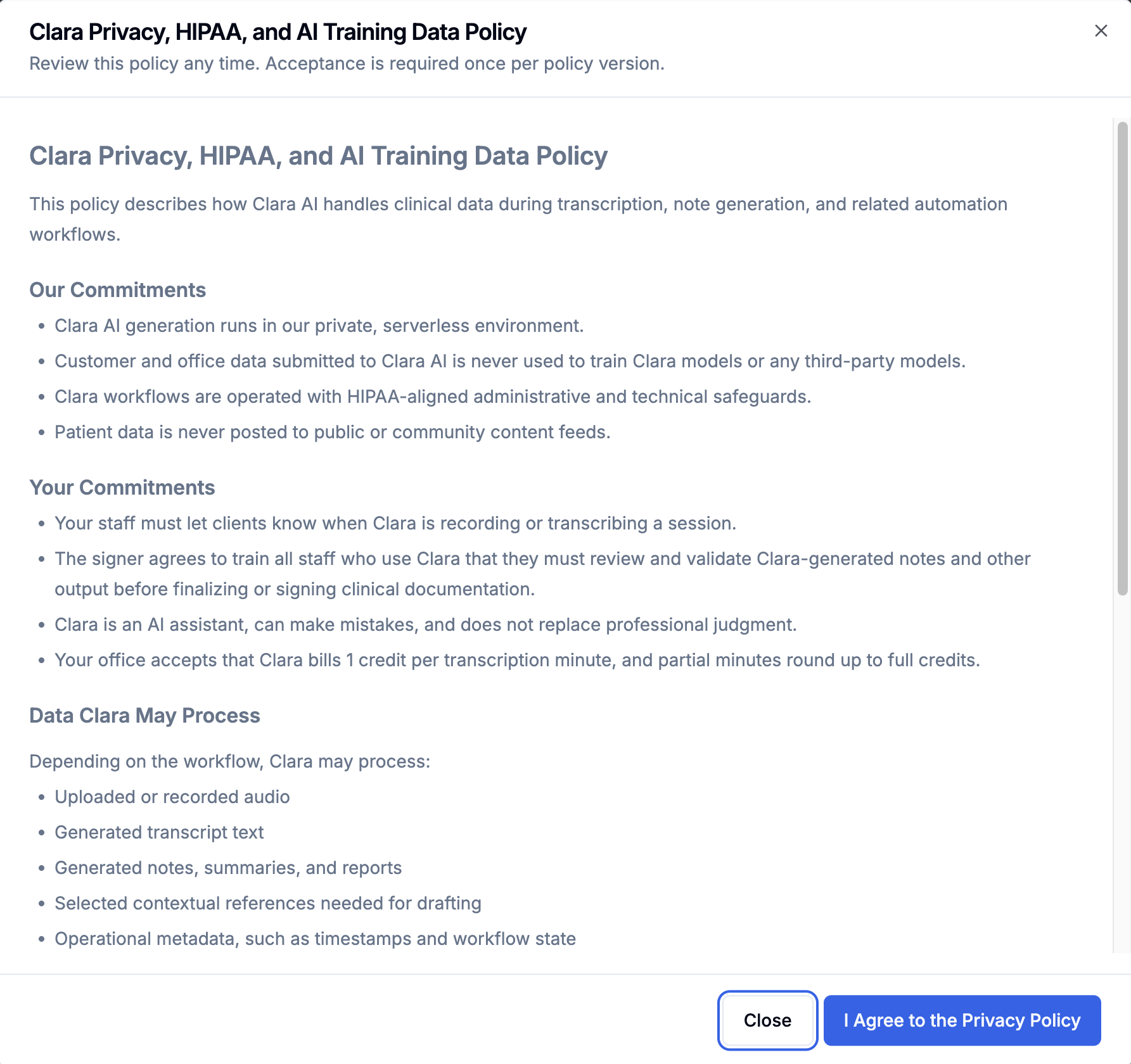
How Clara Credits Work
Clara operates using usage credits.
1 credit = 1 minute of recording
Credits are consumed based on the length of the recording
Purchased credits do not expire
Purchased credits can be used over weeks or months
Examples:
10-minute recording = 10 credits
45-minute recording = 45 credits
Every office receives 30 free Clara credits per month, which are used before purchased credits.
Step 2: Purchase Clara Credits
Clara operates using usage credits.
In Settings → Clara AI, locate the Credits section.
Click Browse Credit Packages.
Select the package you want to purchase.
Confirm your purchase.
Step 3: Enable Users
After purchasing credits, you must enable Clara access for staff and properties.
In Settings → Clara AI, locate the Access Settings section.
Toggle Users to allow specific staff members to use Clara.
Only enabled users will be able to consume Clara credits.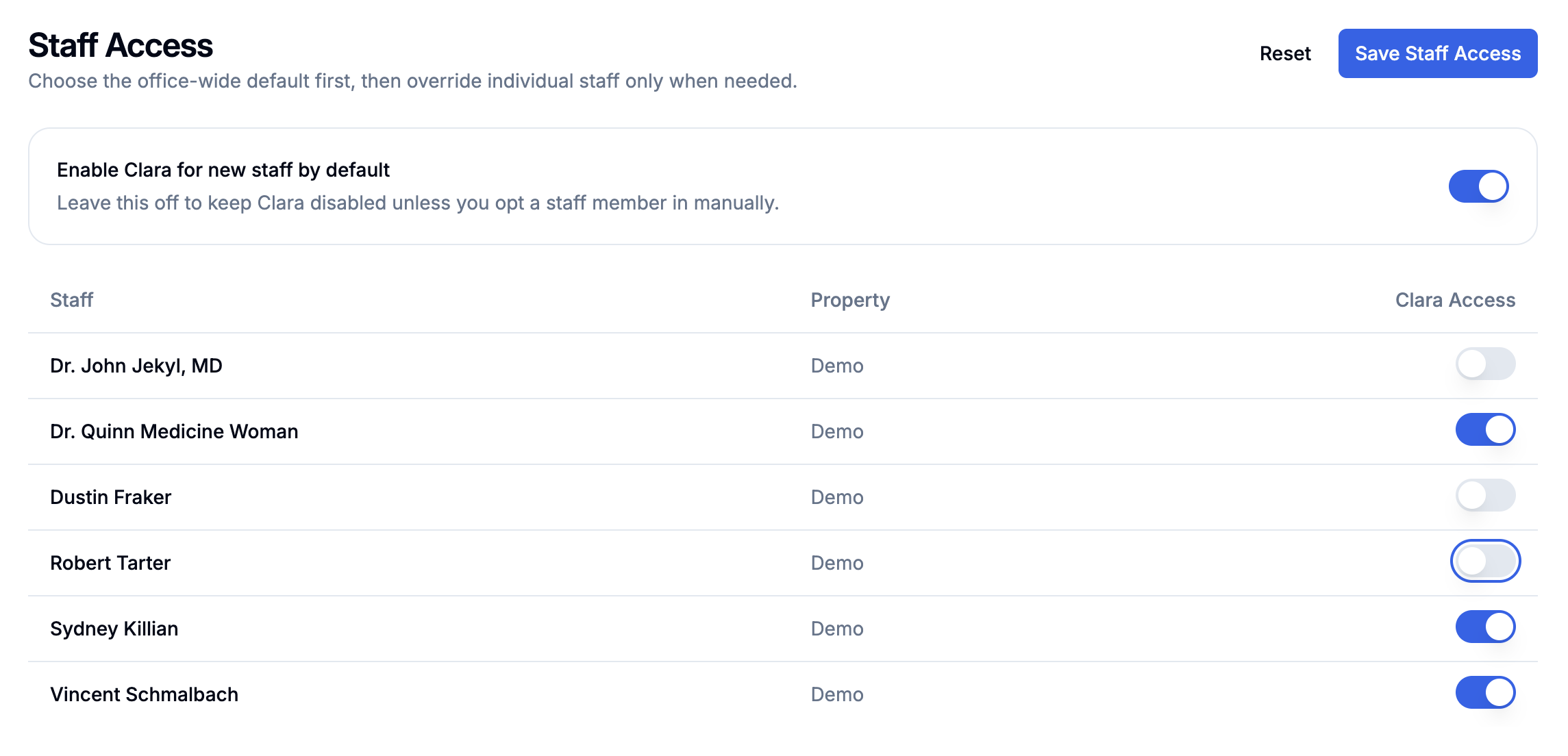
Set Monthly Credit Limits
To control usage, you can set a monthly credit cap.
Go to Settings → Clara AI.
Locate the Credit Limit setting.
Enter the maximum number of credits allowed per month.
This helps prevent unexpected usage.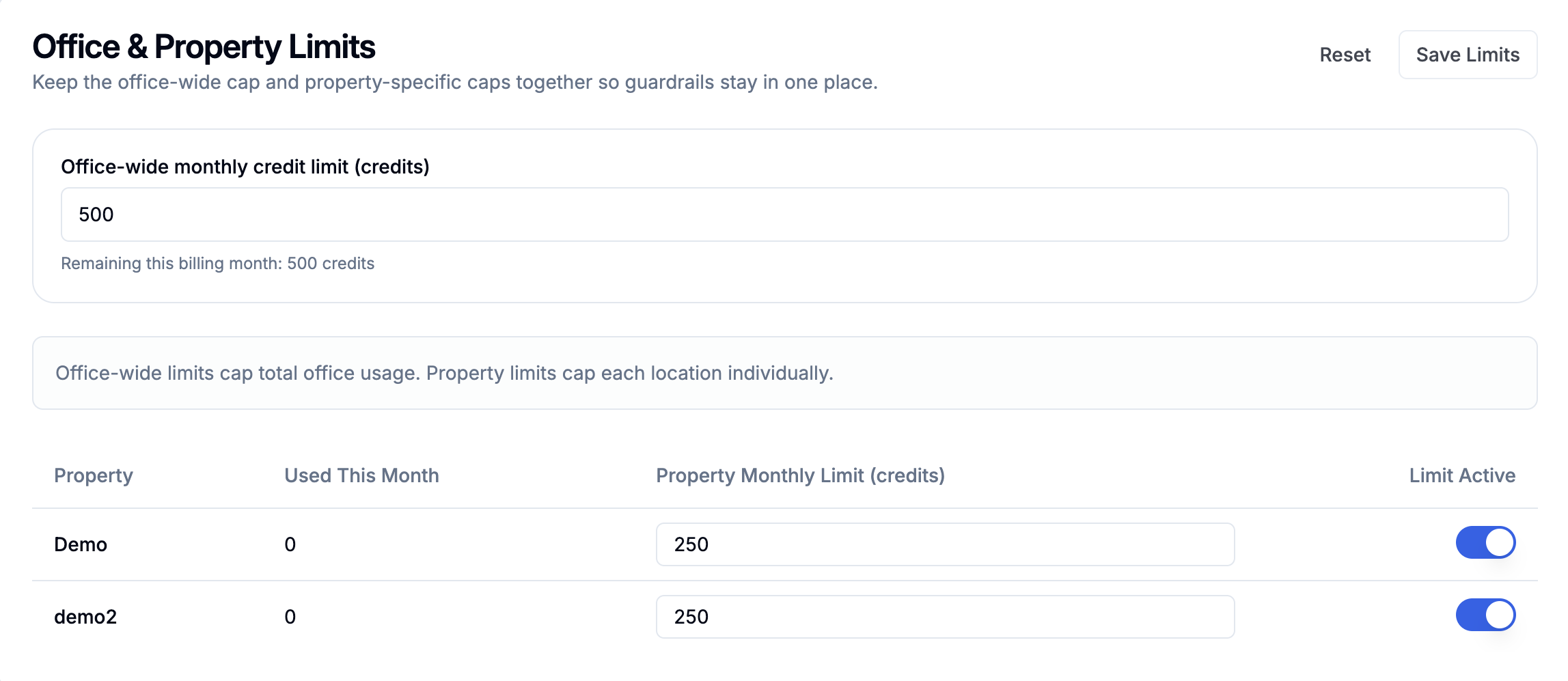
Was this article helpful?
That’s Great!
Thank you for your feedback
Sorry! We couldn't be helpful
Thank you for your feedback
Feedback sent
We appreciate your effort and will try to fix the article