Manage Jobs & Apply Output

Modified on Thu, Feb 19 at 5:12 PM

Use AI Scribe → Jobs to monitor, review, apply, and manage Clara jobs.


Job Statuses

Common job statuses include:

  • Queued – Waiting to begin processing

  • Starting – Initializing the AI job

  • Processing – Actively generating output

  • Completed – Output is ready

  • Failed – Job did not complete successfully

  • Canceled – Job was manually canceled (if applicable)


Per-Job Actions

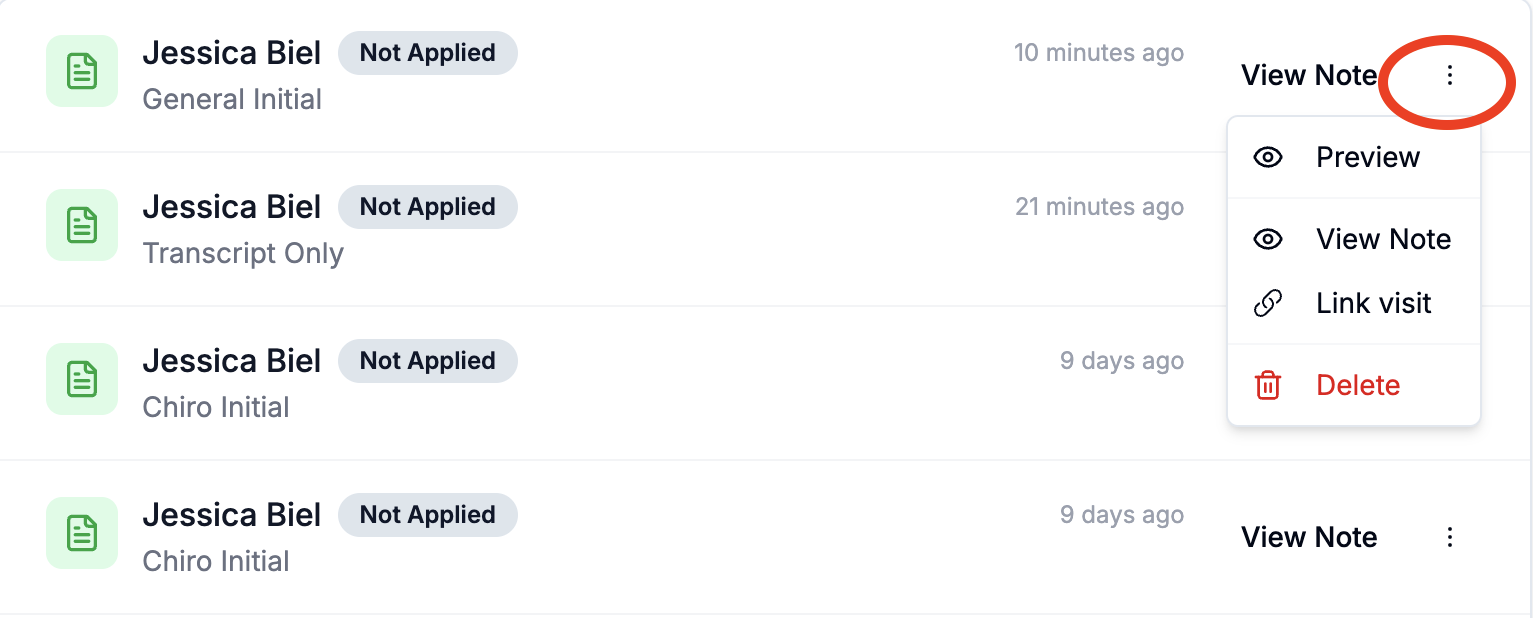
From each job row (or the actions menu), you can:

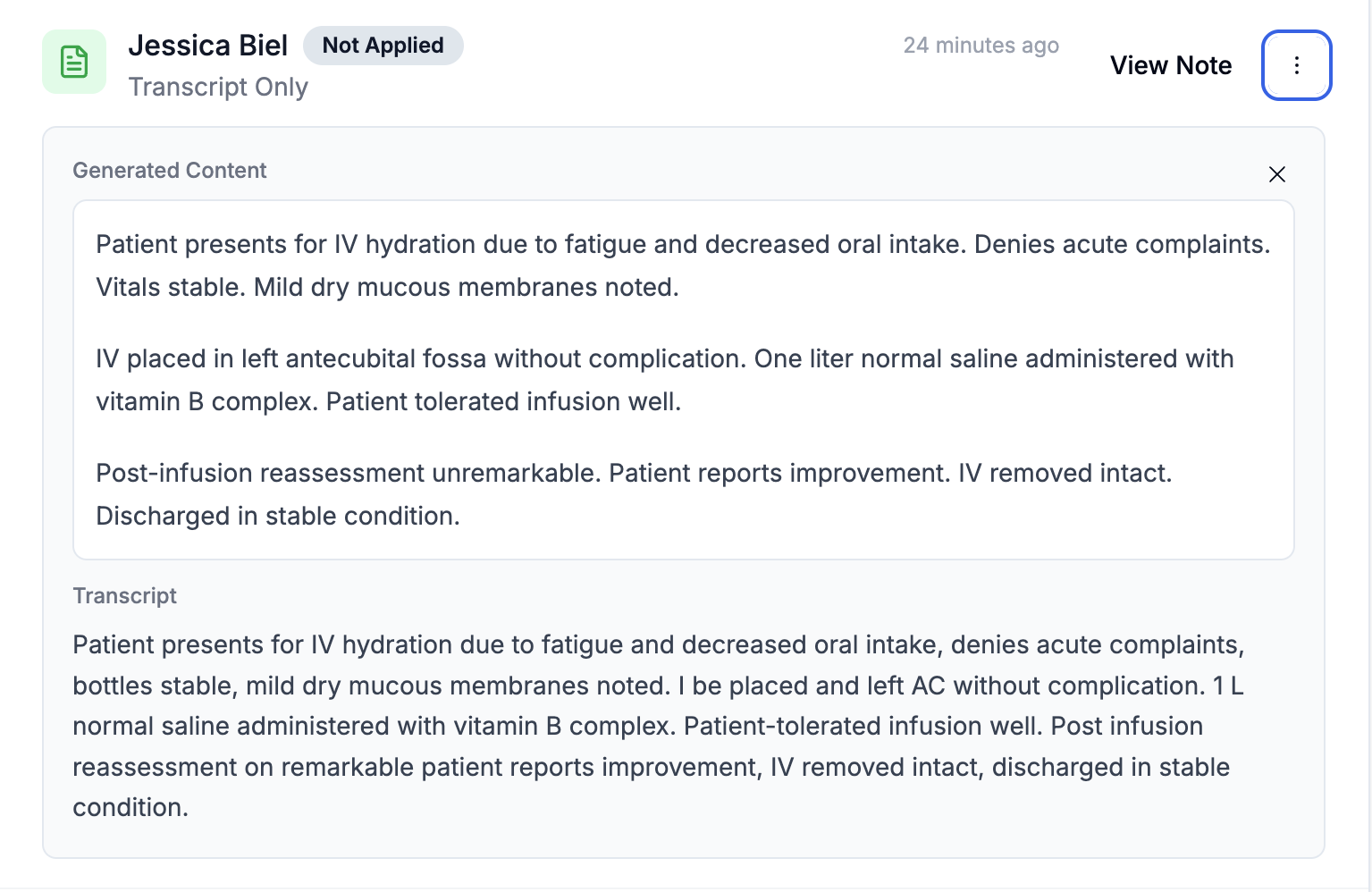
  • Preview – View generated content, transcript, and audio (if available)

  • View Note – Open the associated target note

  • Link Visit – Attach the job to an appointment (if available)

  • Delete – Permanently remove the job and associated artifacts

Deleting a job removes its transcript and generated content.


What You Can Preview

The preview panel may include:

  • Generated note content

  • Timestamped transcript segments

  • Structured form-answer output (for form notes)

Always review content before applying it to a note.


Applied Status

Completed jobs display whether output has been applied:

  • Not Applied – Content was generated but not yet applied to a note

  • Applied – Output has been inserted into the target note

Applying from the panel updates the job status accordingly.

Was this article helpful?

That’s Great!

Thank you for your feedback

Sorry! We couldn't be helpful

Thank you for your feedback

Let us know how can we improve this article!

Select at least one of the reasons
CAPTCHA verification is required.

Feedback sent

We appreciate your effort and will try to fix the article