The Dashboard allows admins to view all undocumented visits across the organization, helping ensure providers complete their SOAP notes in a timely manner.
For an overview of how undocumented visit tracking works, see Undocumented Visits.
To access the Dashboard, users must have:
Settings → Roles & Permissions → Reports: undocumented-visits
Note:
If your account has the Reporting feature enabled, clicking Dashboard in the sidebar will open Reporting instead. In those accounts, the Undocumented Visits panel appears inside Reporting rather than on a standalone Dashboard page.
For more details on the Reporting module, see Reporting Overview.
Most accounts do not have Reporting enabled and will see the standard Dashboard view described below.
What the Dashboard Shows
The Dashboard displays a summary table with:
Provider Name
# Unfinished Notes (appointments or classes with no completed SOAP note)
Count Start Date (when tracking began for that provider)
Ignored Visits (visits intentionally excluded—click show to view)
This view gives admins a quick snapshot of outstanding documentation across the entire clinic.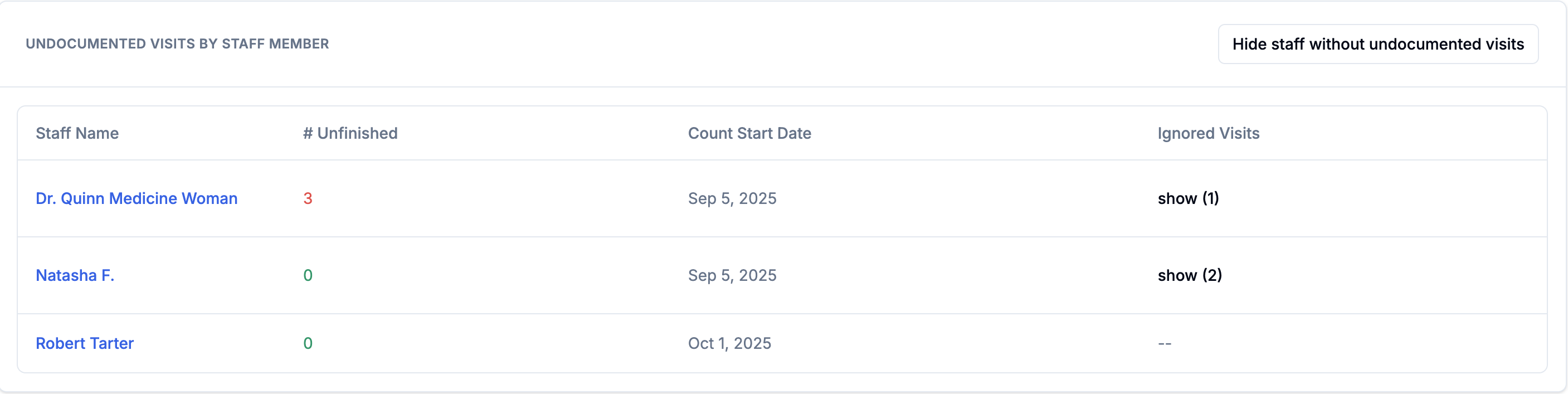
View a Provider’s Undocumented Visits
Click a provider’s name in the table to open a detailed list of all appointments or classes missing SOAP notes.
For each undocumented visit, you’ll see:
Client name
Service or class type
Date and time
Quick actions to open the visit and complete documentation
Use this list to follow up with staff or complete missing notes if you have permission.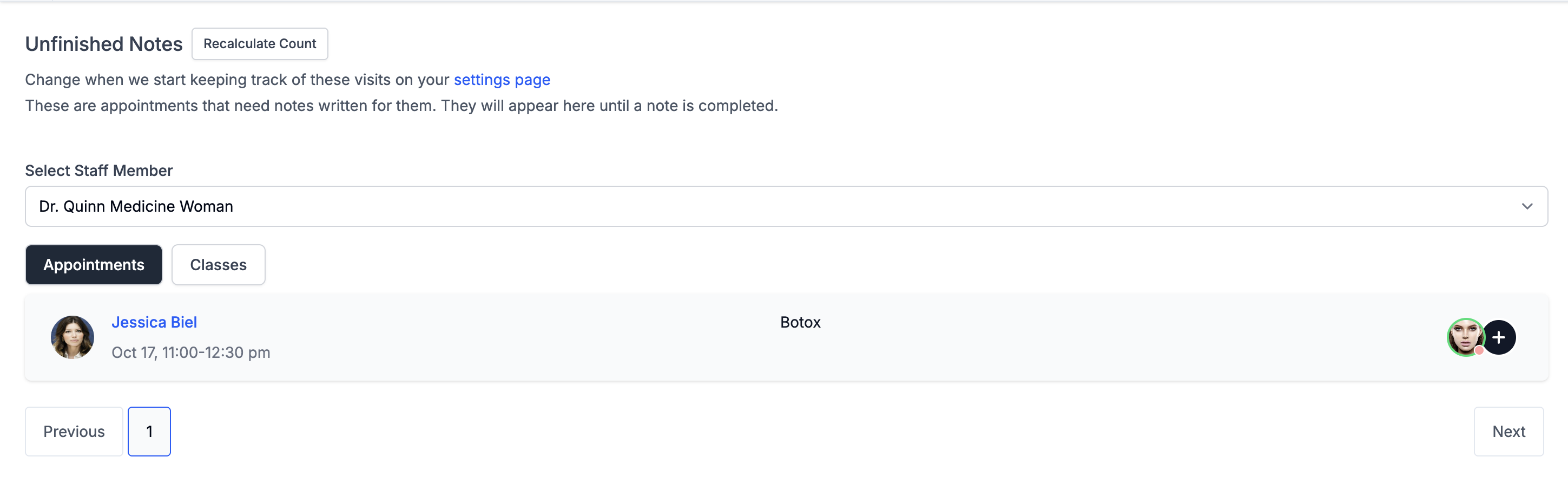
Was this article helpful?
That’s Great!
Thank you for your feedback
Sorry! We couldn't be helpful
Thank you for your feedback
Feedback sent
We appreciate your effort and will try to fix the article