The Appointments page displays all client appointments synced from Mindbody. This is where staff spend most of their time reviewing schedules, documenting visits, managing alerts, and accessing client information.
Page Layout
Search & Filters
At the top of the page, you can:
Search clients by name
Apply filters (status, location)
Click Reset to clear all filters
Location (Property) Filter
Property access determines what locations you can see.
Click Filter
Select a specific location or All Locations
You will only see properties you are assigned to.
“All Locations” means all assigned properties — not all properties in the system.
If you are not assigned to a property, its appointments will not appear.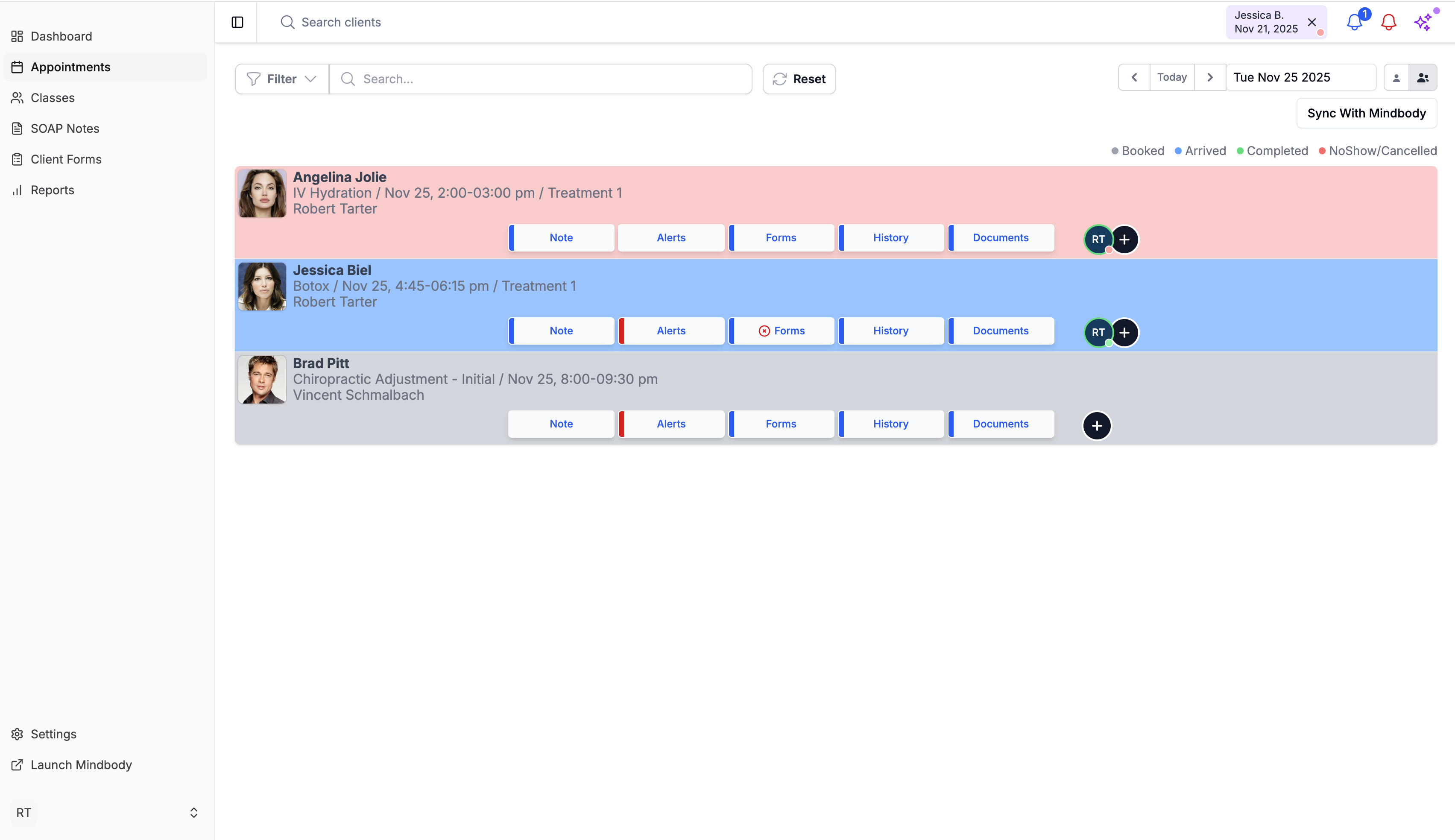
Date Selector
Located at the top-right of the page:
Use arrow buttons to move forward or backward by day
Click Today to return to the current date
Use the dropdown calendar to pick a specific date
Provider View Toggle (Person Icons)
In the upper-right corner, you’ll see person icons that control which appointments you can view:
Single-Person Icon
Shows only your own appointments.
All-Providers Icon
Shows all appointments you have permission to view, and enables the provider filter so you can:
View all providers
Filter to specific providers
Access depends on your role settings in:
Settings → Roles & Permissions → Appointments
Sync With Mindbody
Click Sync With Mindbody to manually refresh the schedule and pull newly created or updated appointments from Mindbody.
Appointment Status Legend
Displayed in the top-right of the appointment list:
Booked
Arrived
Completed
NoShow / Cancelled
Statuses sync automatically from Mindbody.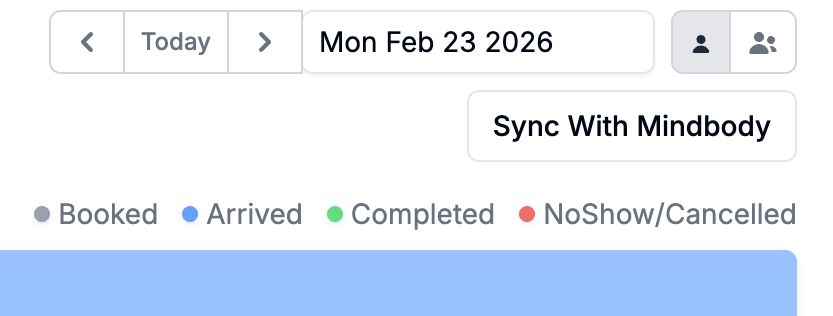
Viewing an Appointment
Each appointment row displays:
Client photo and name
Service name
Date and time
Assigned provider
Color-coded appointment bar
Action buttons for documentation and review
Provider badge on the right
Appointment Actions
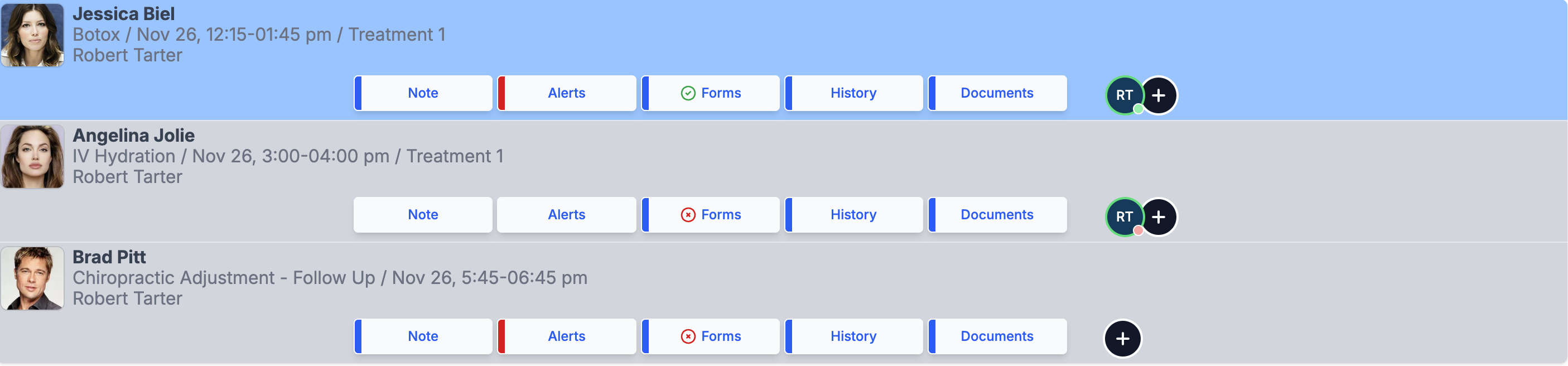
Each appointment row displays a set of action buttons you can click at any time.
If a button has a bar on the left, it means something has already been added in that section.
1. Note (Mindbody Note)
Add or view the Mindbody Note for the appointment.
Syncs two-ways with Mindbody
Kiosk codes appear here when generated
Clearing the text deletes the note
(This is NOT a SOAP note.)
2. Alerts
View or add client alerts.
Alerts appear across:
Appointments
Classes
Client Profiles
At the top of SOAP Notes while writing
(Alerts do NOT sync with Mindbody.)
3. Forms
View all intake forms associated with the appointment.
Includes:
Pending forms
Submitted forms
Form details
(See Intake Forms articles for the full workflow.)
4. History
Opens the client’s history panel.
From here you can:
View all past SOAP Notes
Copy notes or codes
Print notes, codes, or both
Review CPT/ICD usage
5. Documents
Upload or view client documents.
You can:
Pin documents
Mark documents private
Push documents to Mindbody
Download or delete files
6. + (Create SOAP Note)
Create a new SOAP Note for the appointment.
Opens the SOAP note editor
Shows Text Notes and assigned Form Templates
Automatically links the note to the appointment
(See the Creating a SOAP Note article.)
SOAP Note Indicators (Initials on the Right)
The circles on the right side of an appointment show SOAP notes for that visit.
Each circle = one SOAP note
Initials = the staff member who created it
Green = signed & completed
Red = draft
Click a circle to open that specific note.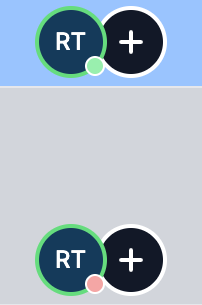
Permissions Required
If you don’t see certain appointments or action buttons, check:
Settings → Roles & Permissions
Appointments visibility depends on:
Assigned Properties (location access)
Assigned Role permissions
Appointments Permissions
appointments:view-all— See all appointments within assigned propertiesappointments:view-own— See only your appointments within assigned propertiesappointments:manage-staff-notes— Add/edit Mindbody Notes
SOAP Notes Permissions
notes:create— Create SOAP notesnotes:view-all— See notes created by othersnotes:reset-draft— Reset completed notes to draftnotes:cosign— Co-sign notesnotes:view-private— View private notes
Alerts Permissions
alerts:create / edit / delete— Manage client alerts
Documents Permissions
documents:view-all— View documentsdocuments:create— Upload documentsdocuments:delete-any— Delete documentsdocuments:view-private— View private files
Important: Property Access Controls Visibility
If you are not assigned to a property, you will not see any data from that location — regardless of your permission level.
Property assignment and role permissions work together to determine access.
Was this article helpful?
That’s Great!
Thank you for your feedback
Sorry! We couldn't be helpful
Thank you for your feedback
Feedback sent
We appreciate your effort and will try to fix the article